
Introduction
Use case modeling is a cornerstone of requirements engineering and system design, enabling teams to capture functional requirements from the user’s perspective. However, creating a use case diagram is only the beginning—thorough documentation of each use case’s details transforms abstract scenarios into actionable specifications that guide development, testing, and stakeholder alignment.
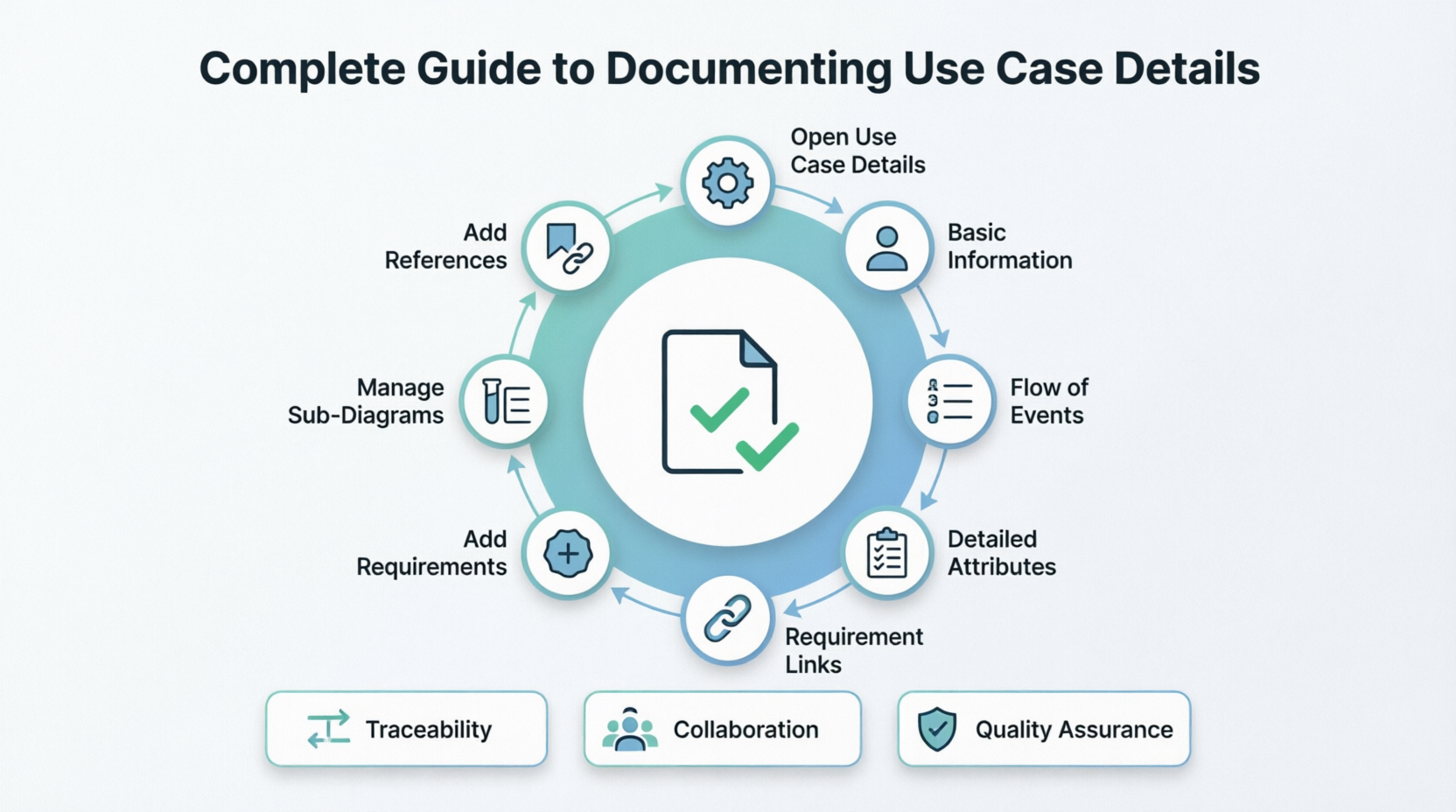
This comprehensive guide walks you through the complete process of documenting use case details in Visual Paradigm, from accessing the Use Case Details dialog to managing requirements, sub-diagrams, test plans, and references. Whether you’re a business analyst, product owner, or systems architect, mastering these documentation practices ensures your use cases serve as living artifacts that drive project success. We’ll explore key concepts, step-by-step workflows, and best practices to help you create clear, traceable, and maintainable use case documentation.
Opening Use Case Details
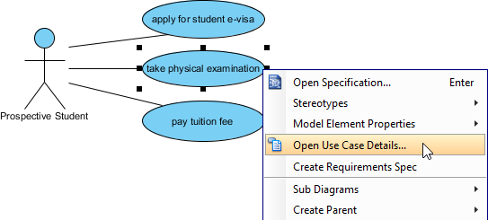
To begin editing and viewing comprehensive use case details, right-click on the target use case in your use case diagram and select Use Case Details… from the pop-up menu.
 |
|---|
| Select Open Use Case Details… |
This dialog serves as your central hub for documenting all aspects of a use case, organized into intuitive tabs for basic information, flow of events, requirements, diagrams, test plans, and references.
Entering Basic Information
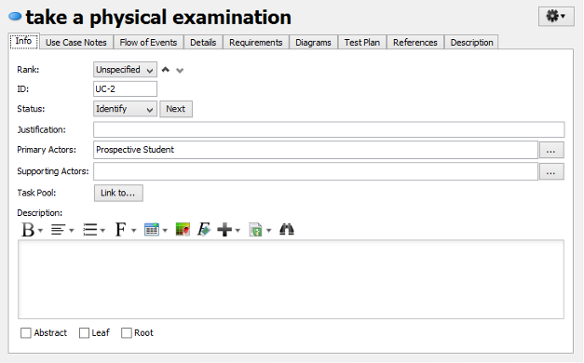
Basic information captures the foundational metadata that contextualizes a use case within your project. This section helps prioritize work and clarify stakeholder involvement.
Rank and Justification: Determine the business value and urgency of the use case. Select a priority rank (e.g., High, Medium, Low) from the drop-down menu and provide a concise rationale in the Justification text field. This supports backlog grooming and release planning.
Actors Management:
-
Primary Actors: Users or systems that directly initiate or interact with the use case. Actors visually connected to the use case in your diagram are auto-populated here.
-
Supporting Actors: Entities that benefit from the system’s output but don’t directly trigger the use case (e.g., reporting systems, auditors).
Both actor types can be manually added by clicking the Plus button and selecting from available actors in your model.
 |
|---|
| Basic information of use case |
💡 Pro Tip: Clearly distinguishing primary vs. supporting actors prevents scope creep and clarifies responsibility boundaries during implementation.
Entering Flow of Events
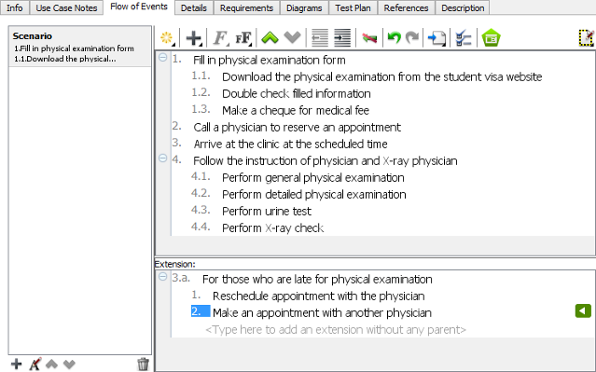
The flow of events describes the step-by-step interactions between actors and the system to achieve the use case’s goal. This is the narrative heart of your use case documentation.
Visual Paradigm allows you to:
-
Define multiple scenarios (main success path, alternative flows, exception paths)
-
Add extensions to specific events for conditional logic
-
Structure events chronologically with clear actor-system handoffs
 |
|---|
| Flow of events of use case |
📝 Best Practice: Write flows in active voice with clear preconditions. Number steps sequentially and use indentation for sub-steps or conditional branches.
Entering Detailed Attributes
The Details tab provides structured fields to capture metadata that supports project management, quality assurance, and traceability:
-
Level: Strategic, User-goal, or Sub-function (Cockburn’s hierarchy)
-
Complexity: Simple, Moderate, or Complex (for effort estimation)
-
Use Case Status: Draft, Reviewed, Approved, or Deprecated
-
Implementation Status: Not Started, In Progress, Completed, or Blocked
-
Preconditions: System state requirements before execution begins
-
Post-conditions: Guaranteed outcomes after successful completion
-
Author & Assumptions: Accountability and contextual constraints
Select appropriate values from drop-down menus to maintain consistency across your model.
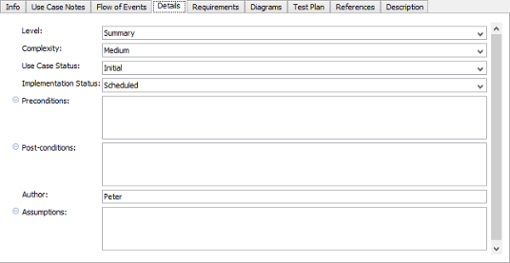 |
|---|
| Details of use case |
Inserting Requirement Links
Traceability between use cases and requirements is critical for impact analysis and compliance. Visual Paradigm enables inline linking to formal requirements:
-
Position & Insert: Click in any multi-line text field where you want a requirement reference. When the Insert Requirement… button appears, click it.
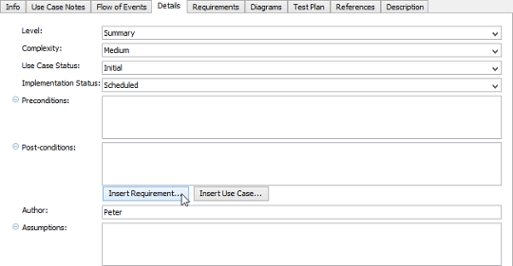
Click Insert Requirement… button -
Select Requirement: In the Select Requirement dialog, browse or search for the target requirement. Narrow results using the diagram filter (top-left) or keyword search (top-right Filter field).

Select a requirement -
Navigate Links: Once inserted, right-click the requirement link to jump directly to its definition or view dependencies.
🔗 Why This Matters: Bidirectional traceability ensures every use case step maps to a business need, simplifying audits and change management.
Adding Requirements
The Requirements tab lets you associate formal requirement artifacts with your use case:
-
Click Add… at the bottom-right of the window.
-
In the Requirements dialog, locate and select relevant requirements, then click OK.
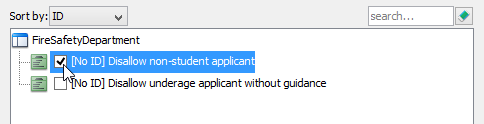
Select a requirement
| NOTE |
|---|
| The Requirements page links existing requirements to your use case. To create new requirements, use the Diagrams tab to add a Requirements Diagram as a sub-diagram (see next section). Requirements defined in sub-diagrams auto-populate this list. |
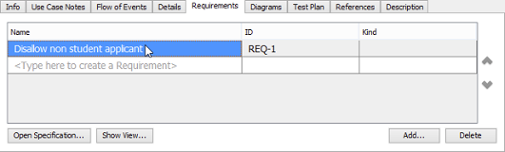 |
|---|
| Requirements of use case |
Managing Sub-Diagrams
Complex use cases often benefit from visual elaboration. The Diagrams tab lets you attach supporting diagrams (activity diagrams, sequence diagrams, wireframes, etc.) as sub-diagrams:
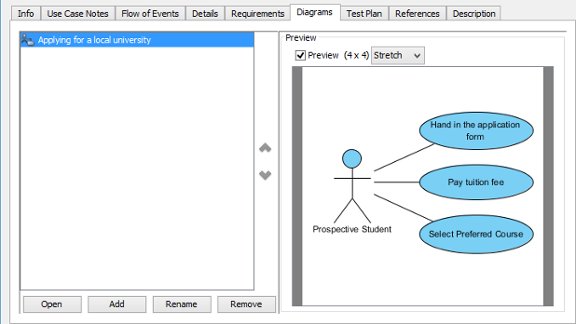 |
|---|
| Diagrams of use case |
Adding a Sub-Diagram
-
Click Add at the bottom of the Diagrams page.
-
Choose New Diagram to create a fresh diagram of your selected type, or Add Existing Diagrams… to link diagrams already in your project.
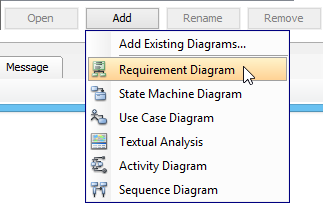
Add a sub-diagram
Opening a Sub-Diagram
Select a diagram from the list and click Open to edit or review it. Enable Show preview to see a thumbnail without leaving the dialog.
🎨 Strategic Use: Attach wireframes to clarify UI expectations, or sequence diagrams to detail complex interactions—keeping all artifacts contextually linked.
Writing Test Plans
While basic validation steps can live in the flow of events, the Test Plan tab is dedicated to documenting comprehensive testing strategies:
-
Test environment configurations
-
Data setup requirements
-
Acceptance criteria
-
Regression test references
-
Performance or security testing notes
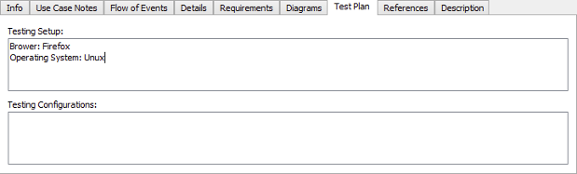 |
|---|
| Test Plan of use case |
✅ Quality Focus: Documenting test plans alongside use cases ensures QA teams have clear, traceable acceptance criteria from day one.
Adding References
Enhance clarity and accessibility by linking to external resources in the References tab. Supported reference types include:
-
Internal model elements (shapes, diagrams)
-
Project files and folders
-
External URLs (specifications, style guides, APIs)
-
Documentation artifacts (PDFs, Confluence pages)
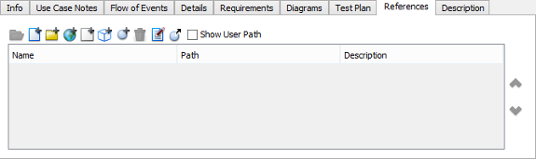 |
|---|
| References of use case |
🌐 Collaboration Boost: Reference links turn your use case into a navigable knowledge hub, reducing context-switching for developers and testers.
Key Concepts & Guidelines for Effective Use Case Modeling
1. Adopt a Consistent Structure
Use Visual Paradigm’s template fields uniformly across all use cases. Consistency enables automated reporting, easier onboarding, and reliable traceability matrices.
2. Prioritize Clarity Over Completeness
Write flows that are understandable to both technical and non-technical stakeholders. Avoid overly technical jargon in primary flows; move implementation details to sub-diagrams or notes.
3. Embrace Iterative Refinement
Start with high-level flows and basic info, then progressively add requirements, test plans, and references as the use case matures. Visual Paradigm’s modular tabs support this agile documentation approach.
4. Maintain Traceability
Always link use cases to requirements and vice versa. Use the requirement linking feature to create a living web of dependencies that updates automatically when artifacts change.
5. Leverage Visual Elaboration
Don’t force complex logic into text. When a flow involves parallel processes, state machines, or detailed UI interactions, attach a purpose-built sub-diagram for clarity.
6. Document Assumptions Explicitly
Capture environmental, technical, or business assumptions in the Details tab. This prevents misalignment when project conditions evolve.
7. Review Actor Roles Regularly
Revisit primary/supporting actor assignments during backlog refinement. Misclassified actors can lead to incorrect system boundaries or missed integration points.
8. Integrate Testing Early
Populate the Test Plan tab during use case authoring—not as an afterthought. This “shift-left” approach catches ambiguities before development begins.
Conclusion
Documenting use case details in Visual Paradigm transforms high-level scenarios into robust, actionable specifications that bridge business needs and technical execution. By systematically capturing basic information, flows, requirements, diagrams, test plans, and references, you create a single source of truth that supports collaboration, reduces rework, and accelerates delivery.
Remember: a well-documented use case isn’t just a requirement artifact—it’s a communication tool, a testing blueprint, and a project compass. Invest time in thoughtful documentation using Visual Paradigm’s integrated features, and you’ll empower your entire team to build the right system, the right way.
Start small: pick one high-priority use case, apply the workflows in this guide, and experience how structured documentation elevates your modeling practice. Your future self—and your stakeholders—will thank you.
References
What is Use Case Diagram? – An introductory guide to Use Case Diagram: A foundational resource explaining the purpose, components, and best practices for creating effective Use Case Diagrams in UML.
New to Visual Paradigm? We have a lot of UML tutorials written to help you get started with Visual Paradigm: A curated collection of beginner-friendly tutorials covering UML modeling, tool navigation, and practical modeling techniques within Visual Paradigm.
Visual Paradigm on YouTube: Official YouTube channel featuring video tutorials, feature demonstrations, and expert tips for maximizing Visual Paradigm’s modeling capabilities.
Visual Paradigm Know-How – Tips and tricks, Q&A, solutions to users’ problems: A community-driven knowledge base offering troubleshooting guidance, advanced techniques, and real-world solutions for Visual Paradigm users.
Use Case Analysis – Capture Use Case Scenario: Detailed guidance on defining and documenting use case scenarios, including main success paths, extensions, and alternative flows.
UML Tool – Use Case Diagram: Overview of Visual Paradigm’s UML tooling capabilities specifically for creating, editing, and managing Use Case Diagrams.